
WordPress plugins are essential for adding functionality and extending the capabilities of your website. However, sometimes plugins can conflict with each other or with your WordPress theme, resulting in compatibility issues. These issues can lead to errors, broken features, or even website crashes. In this blog post, we will explore effective troubleshooting techniques to identify and resolve WordPress plugin compatibility issues, ensuring a smooth and functional website.
Understand the Symptoms:
The first step in troubleshooting plugin compatibility issues is to identify the symptoms. Common signs of compatibility problems include error messages, blank screens, broken layouts, or non-functioning features. Take note of when the issue occurs, which plugins are involved, and any error messages displayed. This information will help you pinpoint the root cause and find a solution more efficiently.
Update Plugins and WordPress Version:
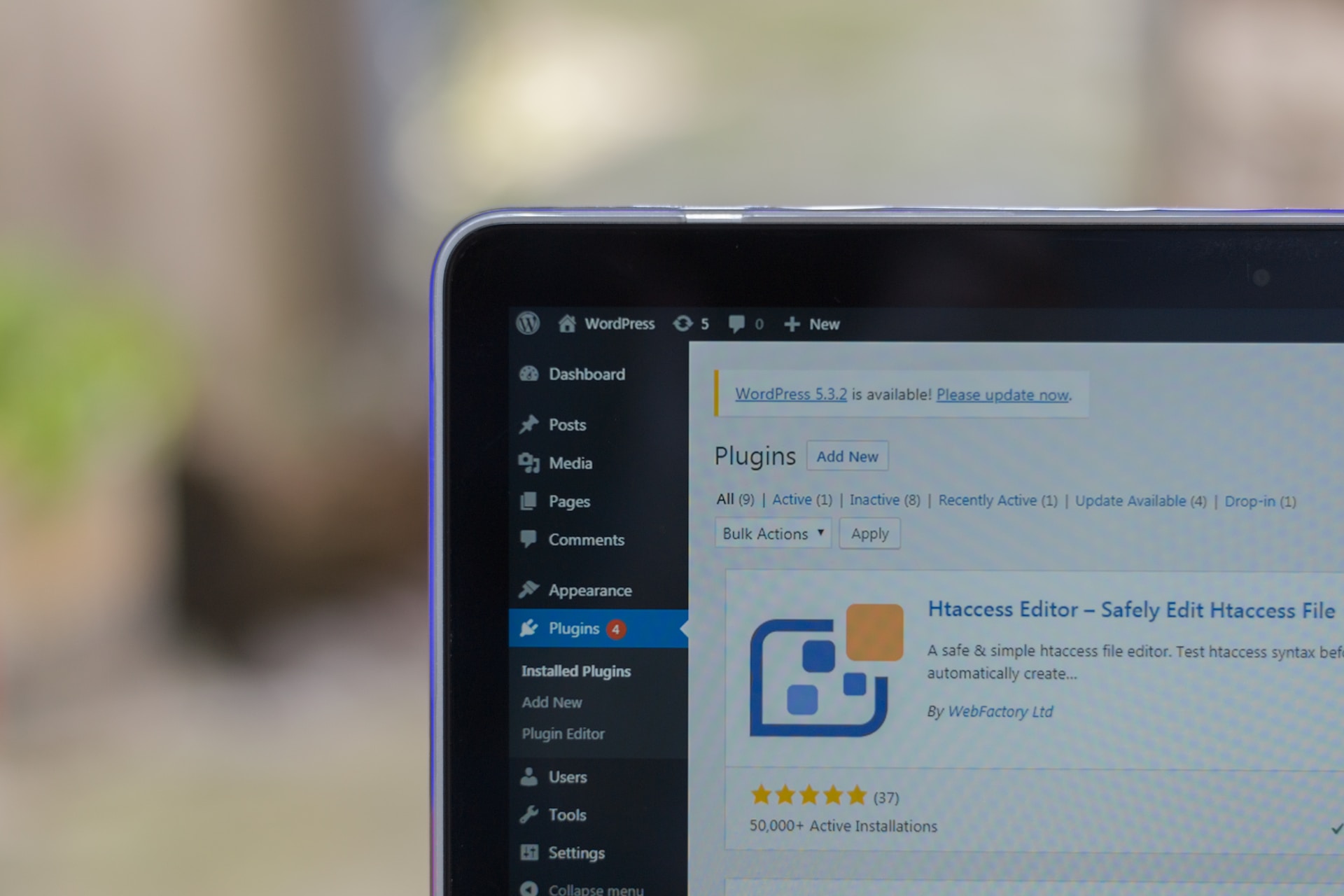
Outdated plugins or an outdated WordPress version can often lead to compatibility conflicts. Ensure that all your plugins and the WordPress core are up to date. Developers frequently release updates to address compatibility issues, improve performance, and fix bugs. Keeping your plugins and WordPress version updated minimises the risk of compatibility problems.
Identify the Problematic Plugin:
If you have recently installed or updated a plugin and the compatibility issue arose afterward, that plugin is likely the culprit. Deactivate the suspected plugin and check if the problem persists. If the issue is resolved after deactivation, it confirms that the plugin is incompatible or conflicting with your setup. You can then delve deeper into resolving the conflict or consider finding an alternative plugin that offers similar functionality.
Check Plugin Documentation and Support:
When troubleshooting plugin compatibility issues, consult the plugin’s documentation and support resources. Plugin authors often provide guidance on common conflicts, known issues, and potential solutions. Check the plugin’s official website, support forums, or knowledge base for any relevant information or updates related to compatibility. It’s also helpful to review user reviews and ratings for insights from others who may have encountered similar issues.
Test with a Default Theme:
Sometimes, compatibility issues can arise due to conflicts between plugins and your WordPress theme. To determine if the theme is causing the problem, temporarily switch to a default WordPress theme like Twenty Twenty-One. If the issue is resolved with the default theme, it indicates a compatibility conflict between the problematic plugin and your theme. Reach out to the plugin developer or consider seeking assistance from a developer to resolve the conflict.
Plugin Conflict Testing:
If you suspect conflicts between multiple plugins, perform a plugin conflict test. Deactivate all plugins except the one causing the issue and then reactivate the remaining plugins one by one, testing the site after each activation. This method helps identify which plugins are incompatible with each other. Once you isolate the conflicting plugins, reach out to the respective developers for guidance on resolving the conflict or consider finding alternative plugins that work well together.
Enable Debugging:
Enabling WordPress debugging can provide valuable error messages and warnings that help identify the source of compatibility issues. By adding the following line of code to your wp-config.php file:Copy
define('WP_DEBUG', true);
You can activate debugging mode and view detailed error messages. Debugging provides insights into the root cause of compatibility issues and can guide you towards the appropriate solution.
Seek Professional Help:
If you have exhausted all troubleshooting techniques and are still unable to resolve the compatibility issue, it may be time to seek professional help. Experienced WordPress developers or support teams can provide expert assistance in diagnosing and resolving complex plugin compatibility problems. They can offer customised solutions or suggest alternative plugins that better suit your needs.
Conclusion:
WordPress plugin compatibility issues can disrupt the functionality and performance of your website. By understanding the symptoms, keeping plugins and WordPress up to date, identifying problematic plugins, consulting documentation and support resources, testing with a default theme, performing plugin conflict tests, enabling debugging, and seeking professional help when needed, you can effectively troubleshoot and resolve compatibility conflicts. Remember, maintaining a functional and harmonious plugin ecosystem is essential for a smooth WordPress website experience.